

Publishing
1
Publish
Click the Publish button in the top-right corner of your project
2
Share
Click the Share button to get your project link
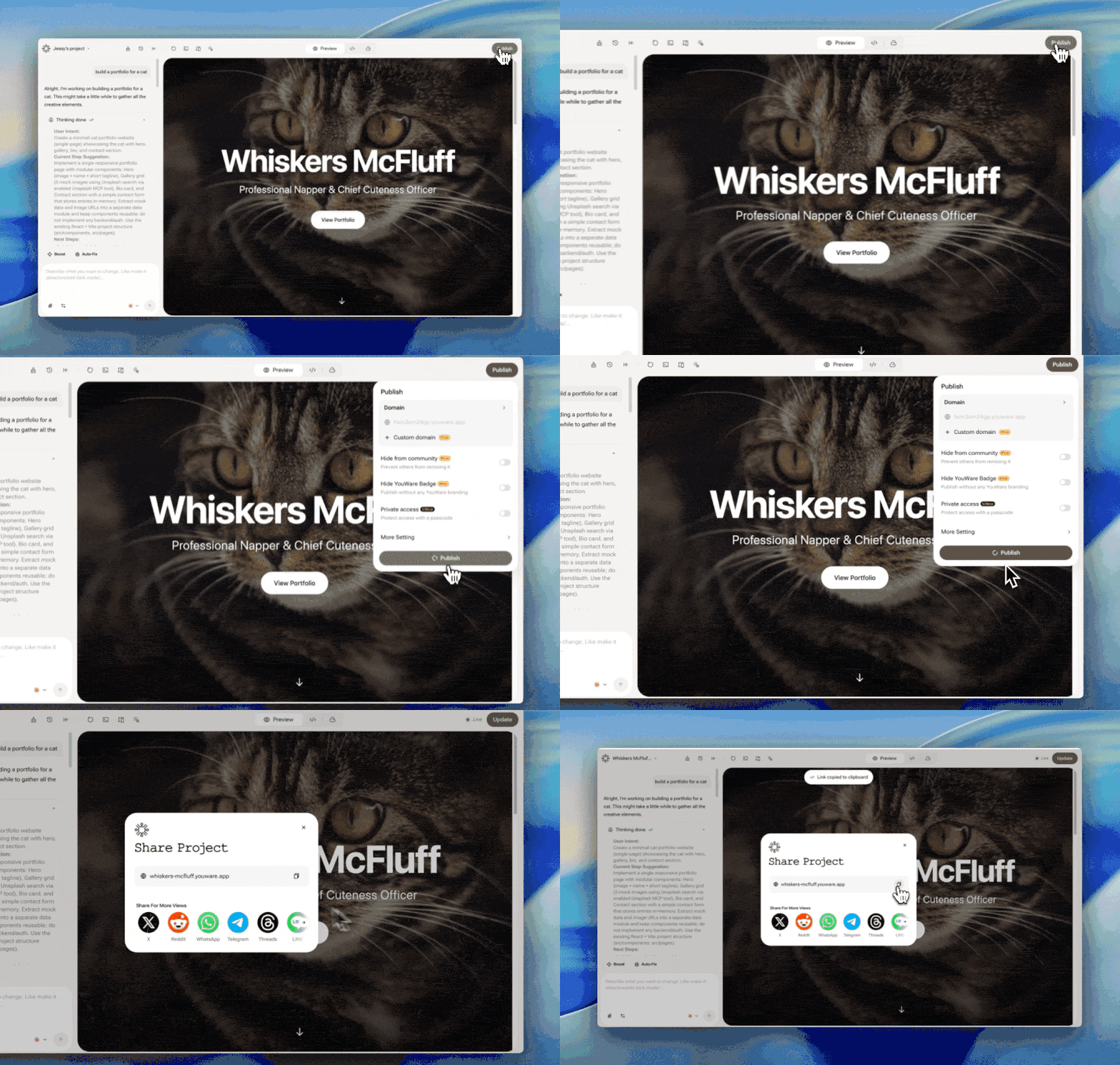
Your Project Link
After publishing, your project gets a standard link showing the work and description.Auto-Generated Description
When you share a project, a short description is automatically created based on your project content.Mobile App Integration
When someone opens your shared link in the YouWare mobile app, they go directly to the project details page. This gives them quick access to your work with one tap, and they can remix it if you’ve allowed it.Privacy & Sharing Settings
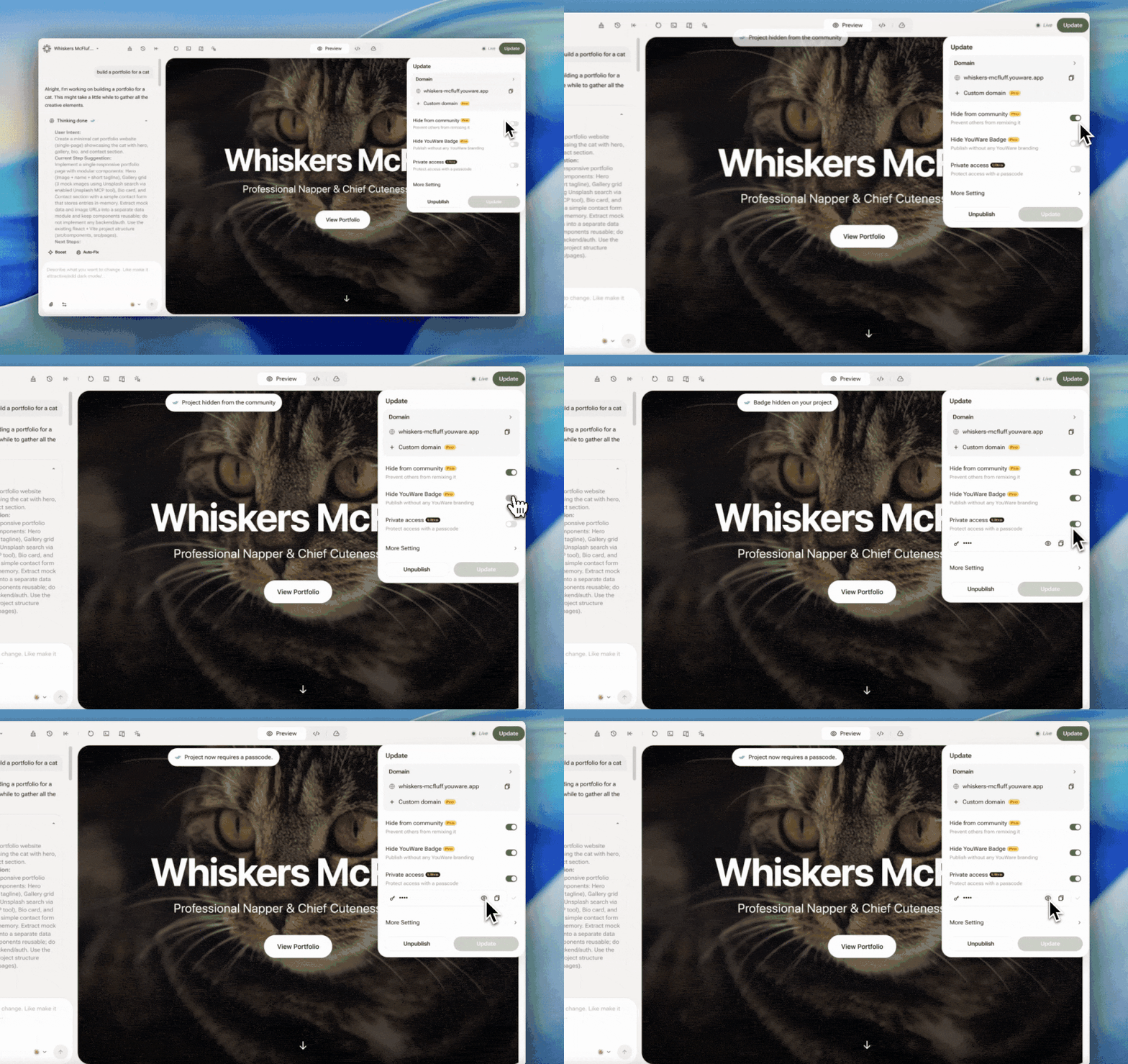
Privacy and Remix settings are available on paid plans only.
Private Projects
Private Projects
Require a four-character password to access. The system generates one automatically, and you can share it with whoever you choose.
Remix Permissions
Remix Permissions
Allow or disable other users from remixing (copying and modifying) your project. When disabled, it becomes read-only.
Remove YouWare Badge
Remove YouWare Badge
Hide the YouWare branding badge from your published project for a cleaner, more professional look.
Frequently Asked Questions
Can I change the auto-generated description?
Can I change the auto-generated description?
No. The description is automatically generated when you share your project. To control what others see, you can make the project private or delete it.
Can I track how many times my project was viewed?
Can I track how many times my project was viewed?
Views are tracked in your Creator Studio dashboard. You can see total views and how many people have used your project.
How do I stop sharing my project?
How do I stop sharing my project?
Click the Unpublish button to make your project private again. The shared link will become inactive immediately.