

What is Chat Mode?
Chat Mode is a conversational interface for chatting with AI, generating images, creating videos, and exploring ideas. It’s designed for creative work that doesn’t require building a website.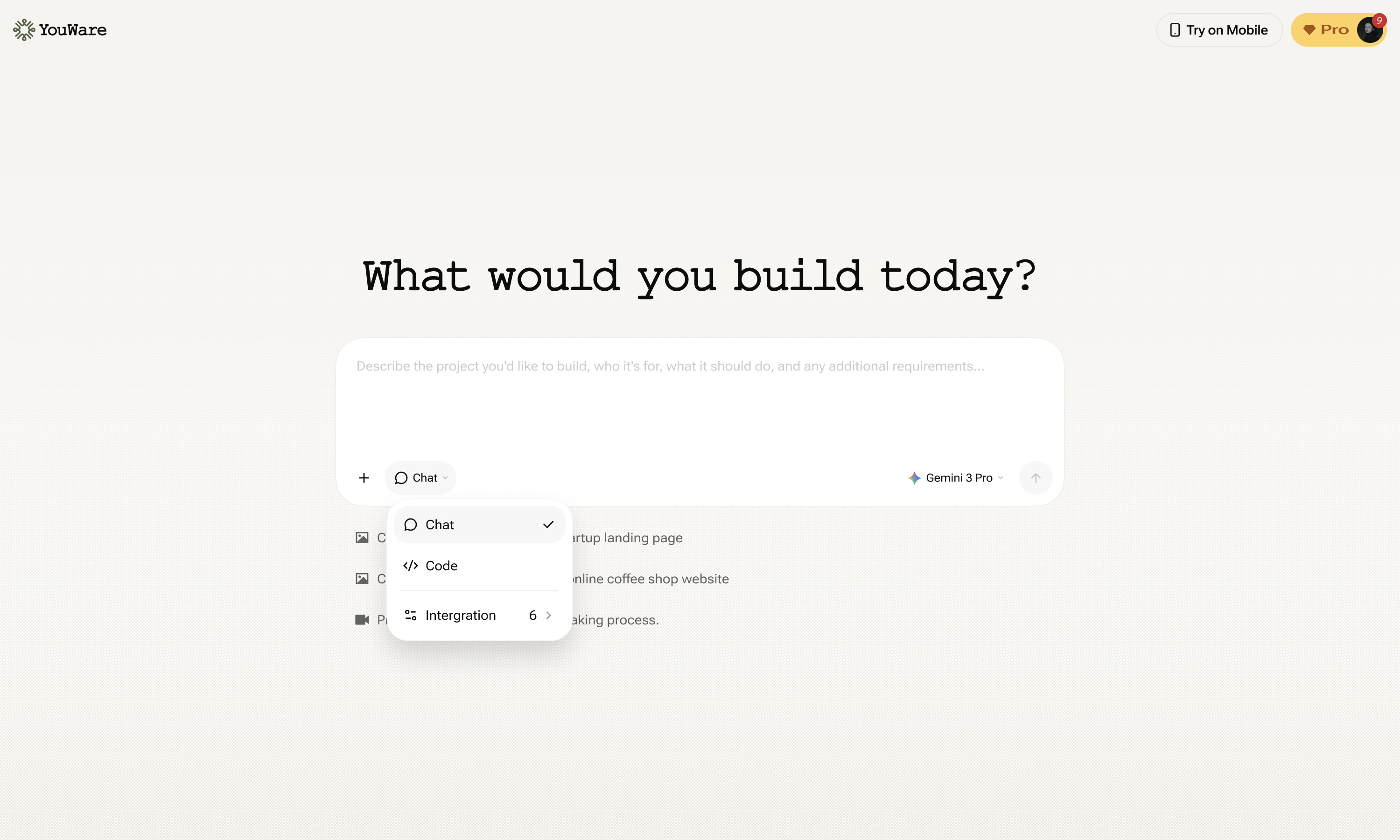
Quick Start
What Can You Do in Chat Mode?
Generate Images
Create hero images, product mockups, illustrations, backgrounds, icons
Generate Videos
Create product demos, explainer videos, social media content
Brainstorm Ideas
Discuss concepts, get suggestions, explore creative directions
Ask Questions
Get help with design decisions, content writing, or project planning
Chat Mode vs Code Mode
YouWare has two distinct modes:| Mode | Purpose | What Happens |
|---|---|---|
| Chat Mode | Conversation & asset generation | Talk with AI, generate images/videos, brainstorm |
| Code Mode | Website building & editing | AI writes code, builds pages, modifies your site |
Smart Intent Detection
YouWare automatically detects your intent. If you mention website-related keywords (like “landing page”, “build a site”, “create a homepage”) while in Chat Mode, YouWare will recognize this and switch to building mode. Examples that trigger building:- “Create a landing page for my startup”
- “Build me a portfolio website”
- “Make a homepage for a coffee shop”
- “What makes a good landing page?”
- “Generate a hero image for my website”
- “Give me ideas for a portfolio layout”
Image & Video Generation
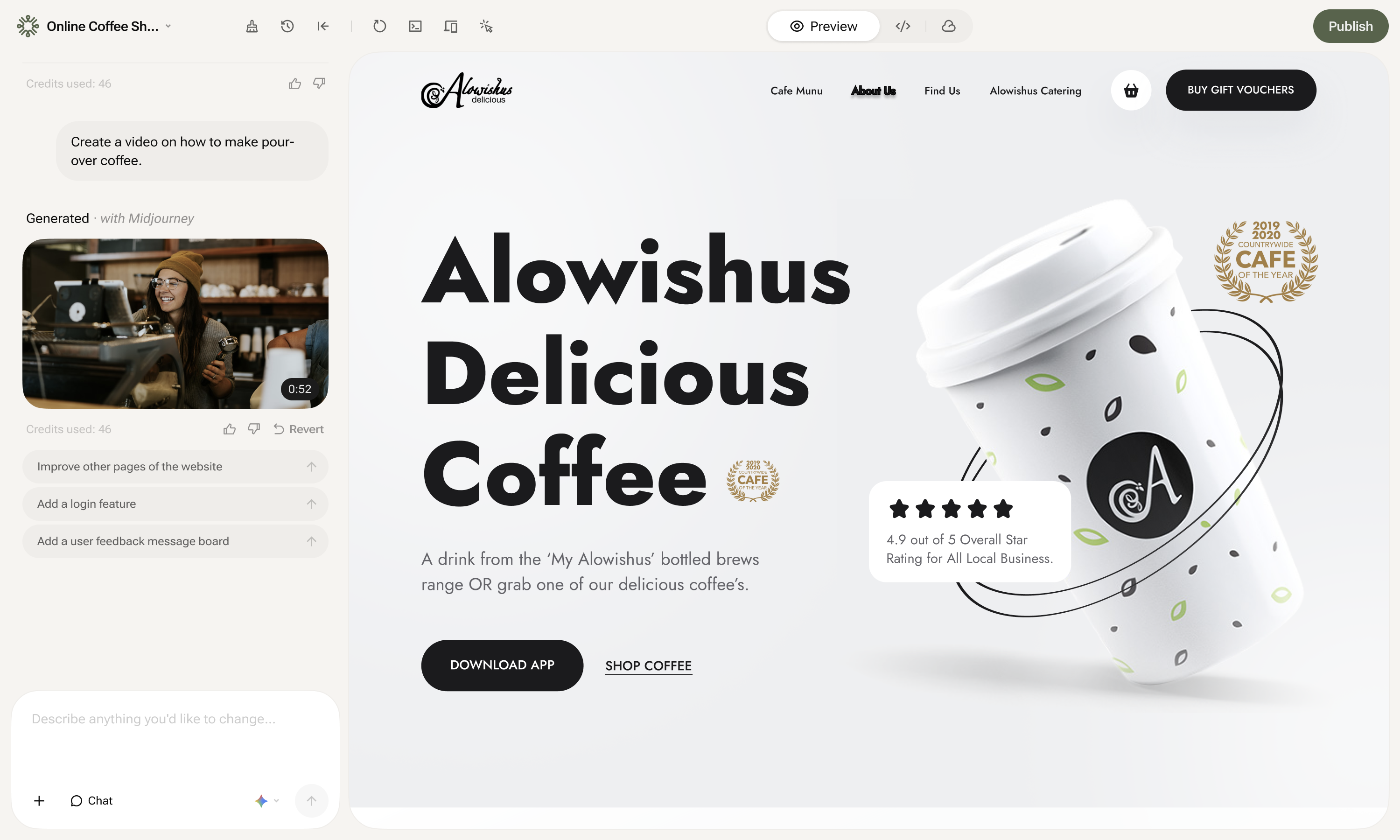
Generation Methods
You can generate content in multiple ways:| Method | Description |
|---|---|
| Text → Image | Describe what you want, AI generates the image |
| Text + Image → Image | Provide a reference image with your description |
| Text → Video | Describe the video you want |
| Text + Image → Video | Use a reference image as the starting point for your video |
Available Models
Image Generation Models
Image Generation Models
| Model | Description |
|---|---|
| Nano Banana (default) | Fast, good for quick iterations and mockups |
| Nano Banana Pro | Higher quality version of Nano Banana |
| Midjourney | High-quality artistic images, illustrations |
| GPT-image-1 | OpenAI’s image generation model |
Video Generation Models
Video Generation Models
| Model | Description |
|---|---|
| Veo 3.1 Fast (default) | Quick video generation |
| Veo 3.1 | Higher quality, slower generation |
| Sora 2 | OpenAI’s video model |
| Sora 2 Pro | Enhanced version of Sora 2 |
Default Output
- Images: 4 images per generation
- Videos: 1 video per generation
Example Prompts
| Goal | Example Prompt |
|---|---|
| Hero image | ”Create a hero image for a fitness app with a minimalist style” |
| Product mockup | ”Generate a 3D mockup of a coffee cup with my logo” |
| Video demo | ”Create a video showing how to use a coffee pour-over” |
| Image + Text | Upload a sketch and say “Turn this into a polished illustration” |
- Be specific about style: “minimalist”, “3D render”, “watercolor”
- Mention dimensions if needed: “wide banner”, “square icon”
- Reference aesthetics: “like Apple’s product photos”
- Use reference images when you have a specific vision in mind
Where Do Generated Assets Go?
All images and videos you generate in Chat Mode are automatically saved to your project’s Assets folder.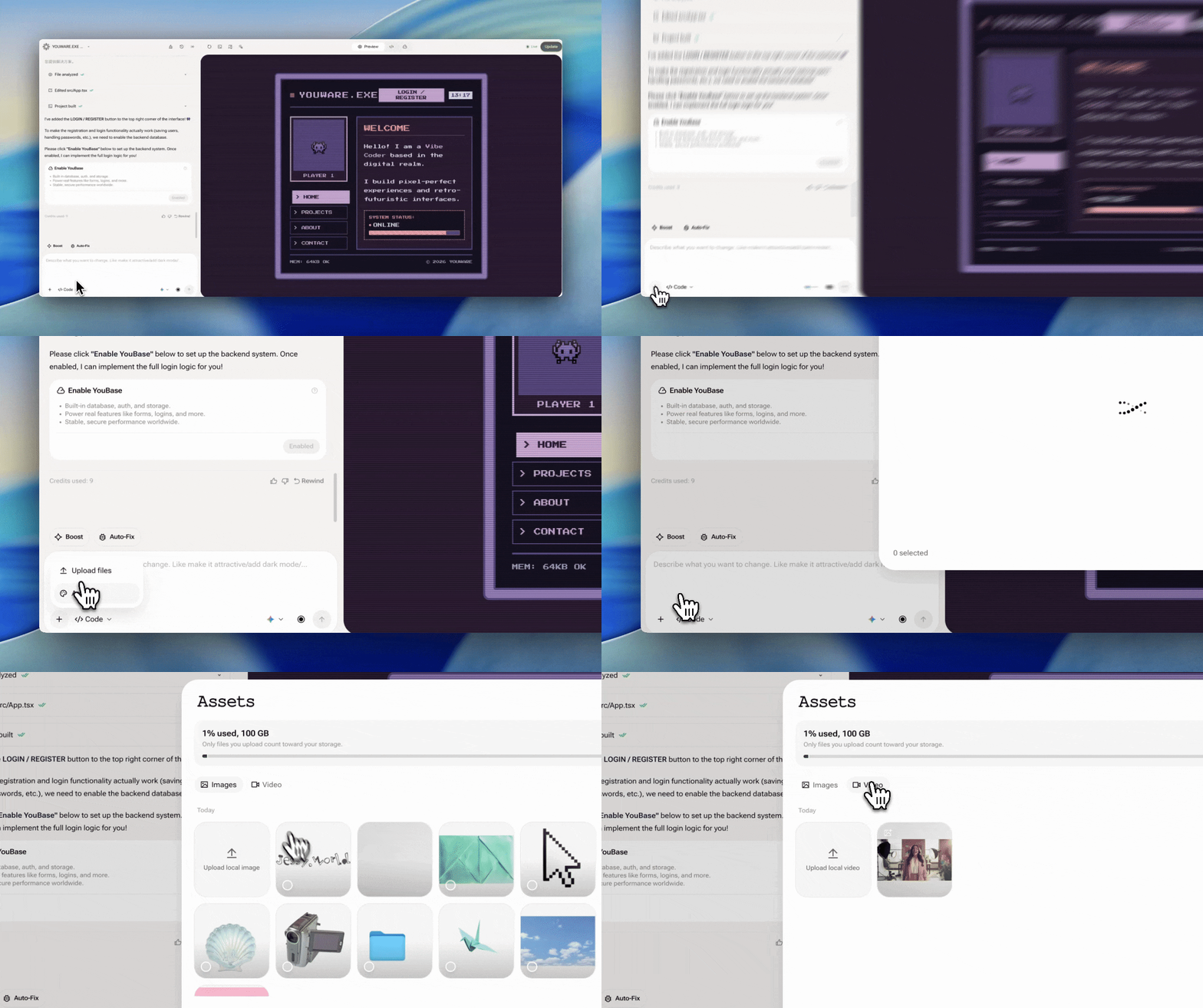
Assets Folder Structure
What You Can Do with Assets
- Use in your website — Reference assets when building in Code Mode
- Download — Save to your computer for use elsewhere
- Regenerate — Generate a new version if you want something different
- Manage — View, organize, and delete from the Assets panel
Assets are tied to your project. Switch to the Assets panel to view, manage, or download your generated content.
Best Practices
Be Specific About Style
“Minimalist hero image with blue tones” works better than “make an image”
Iterate with Follow-ups
“Make it brighter” or “Try a different angle” to refine results
Use for Exploration
Chat Mode is great for brainstorming before you commit to building
Check Your Assets
Remember to review and organize generated content in the Assets panel
How It Works
Intent Recognition
When you send a message, YouWare analyzes your intent:Good to Know
- Generated assets are automatically saved to your project’s Assets folder
- You can switch between Chat and Code Mode anytime using the toggle
- Intent detection means you don’t have to worry about being in the “wrong” mode
- Chat history is preserved within your session