> ## Documentation Index
> Fetch the complete documentation index at: https://docs.youware.com/llms.txt
> Use this file to discover all available pages before exploring further.
# Visual Editing - Direct UI Modifications
> Edit website elements directly in the preview with instant visual feedback. Make precise UI changes without describing them to AI, saving time and credits while maintaining full control.
**Direct, Precise, Instant** — Skip the back-and-forth. Select elements on screen, edit them visually, and apply changes instantly. Visual Editing empowers you to iterate faster while using fewer AI credits.
Visual Editing transforms the way you build. Instead of describing UI changes to AI, you select elements directly in the preview, adjust them visually, and see results in real-time. Perfect for fine-tuning layouts, updating text, swapping images, or refining interactions—all without consuming extensive AI resources.
## Why Visual Editing Matters
Make changes in seconds, see results instantly. No waiting for AI responses.
Visual modifications consume minimal credits compared to descriptive edits.
Select exactly what you want to change. No ambiguous descriptions needed.
See every adjustment update in real-time as you modify elements.
## Getting Started
Click the **Edit** button in the bottom-left corner of the chatbot to activate Visual Editing mode
Hover over the element you want to modify, then click to open the editing toolbar
Use the available tools to adjust text, images, styling, or properties
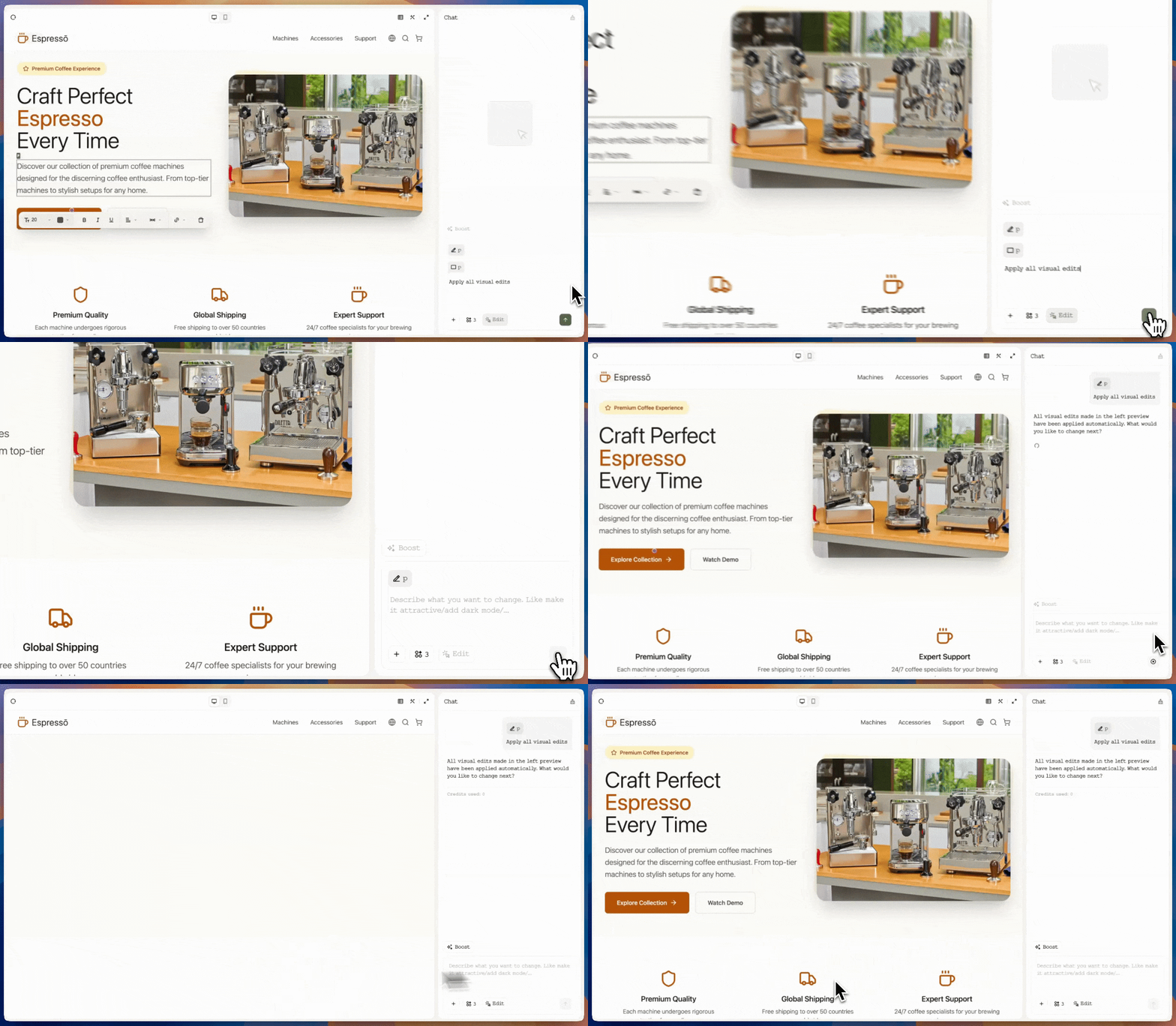
Click the send arrow or press Enter to apply your edits and exit Visual Editing mode
## Editing Different Elements
### Text Elements
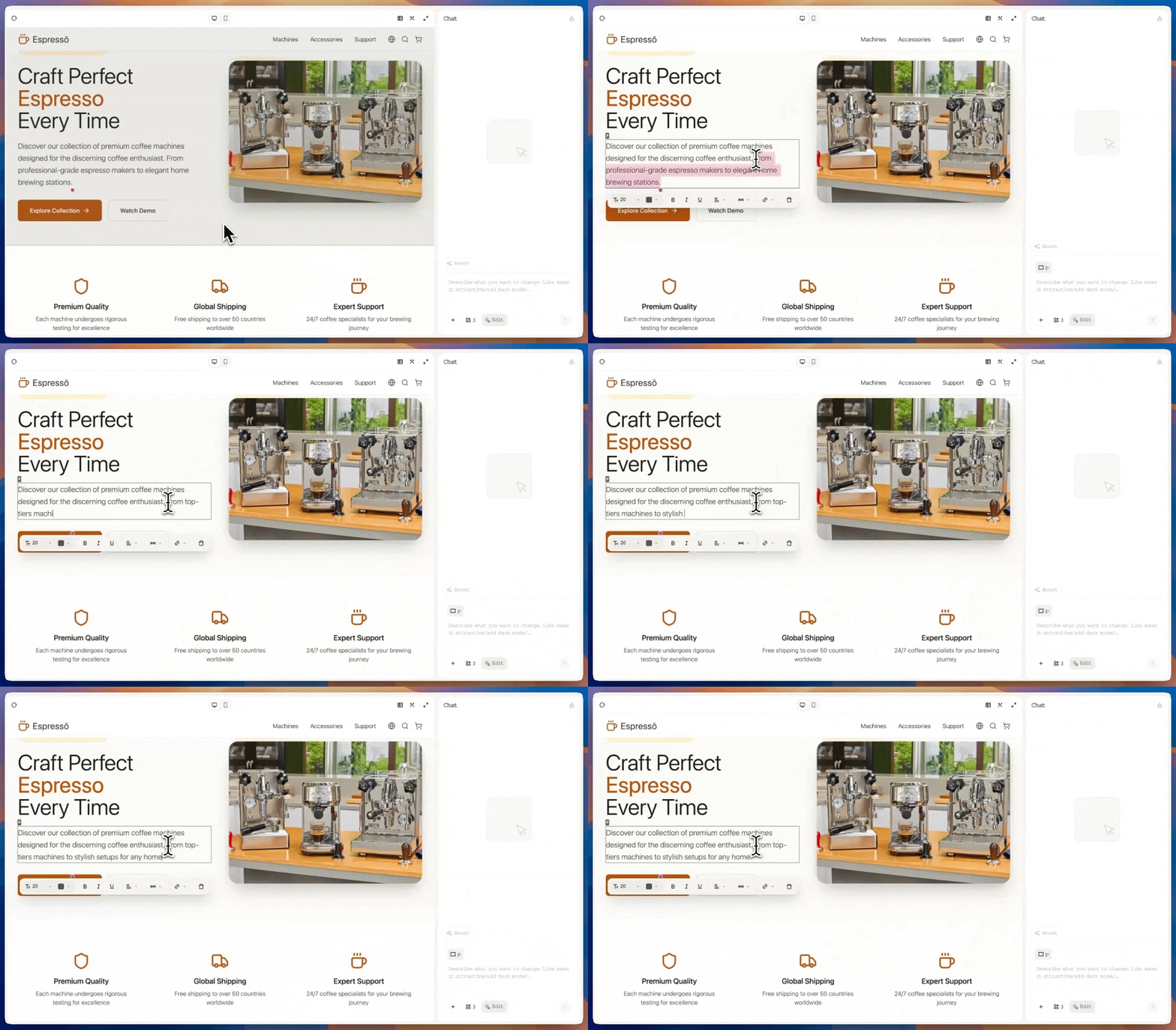
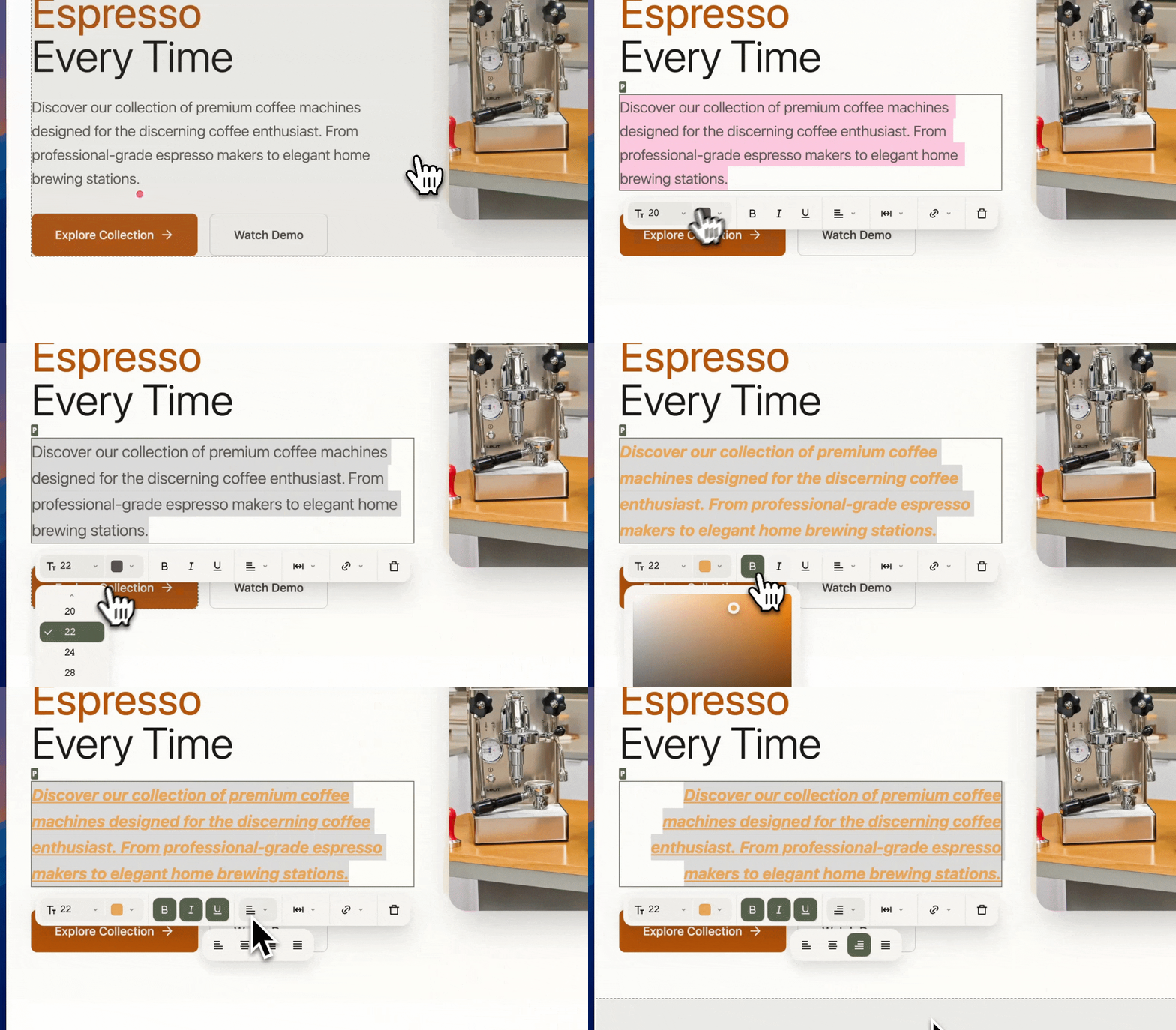
Click directly on any text to edit its content. The toolbar provides comprehensive formatting options:
Adjust **font size**, **color**, **style** (bold, italic, underline), and **text alignment**. Add hyperlinks to make text interactive.
Modify **padding** and **margin** to control space around text elements and their positioning.
### Image Elements
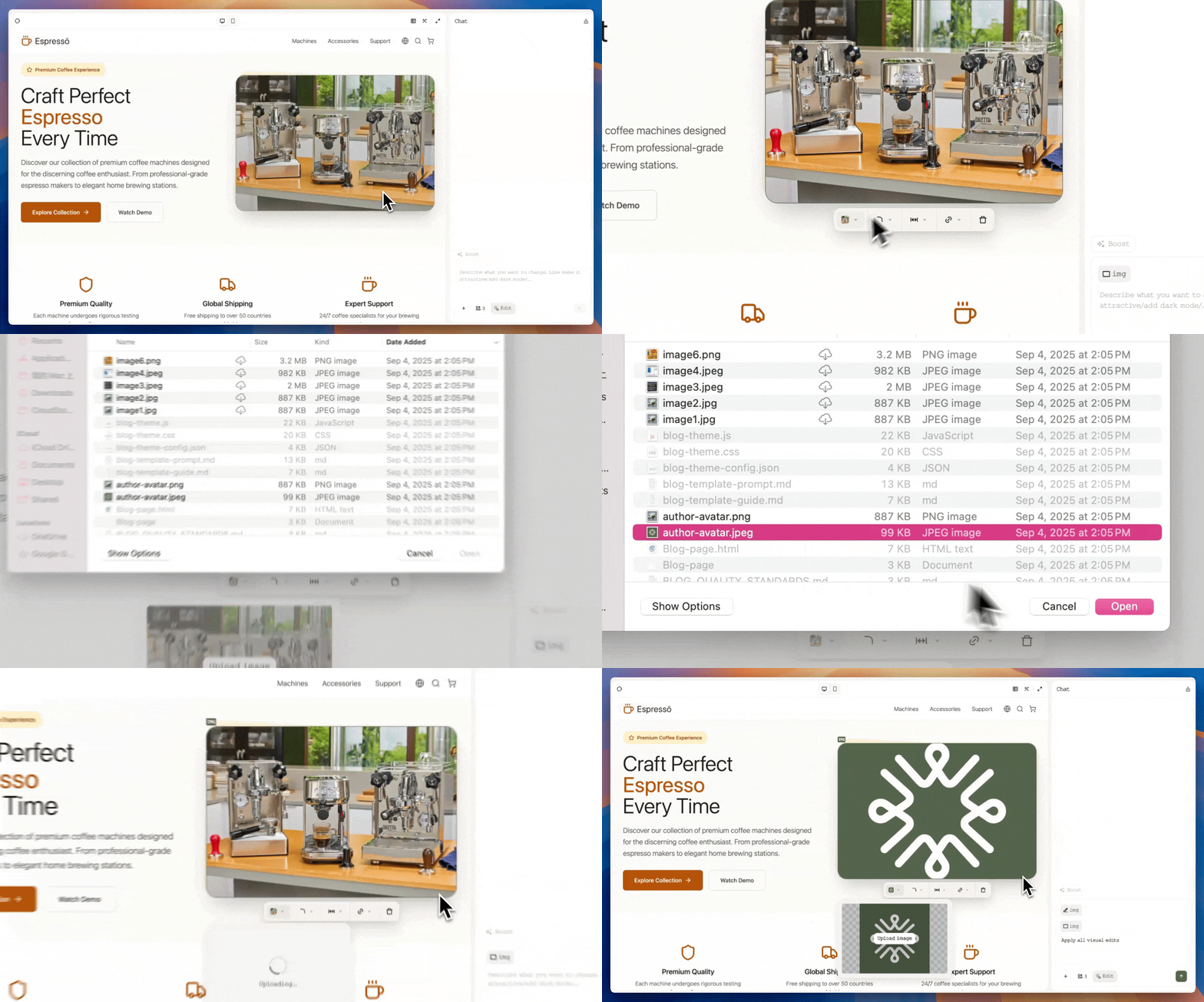
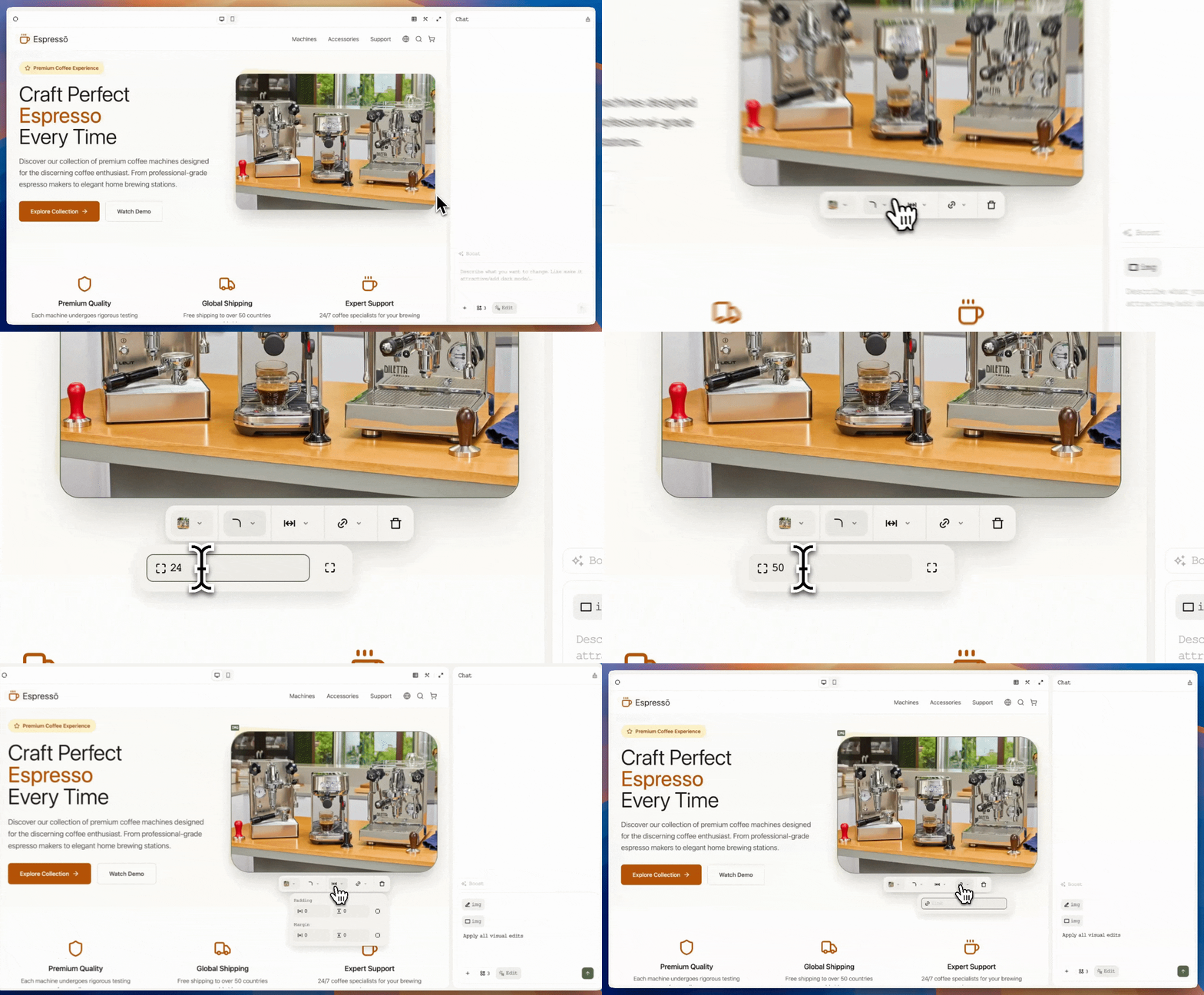
Select any image to replace or customize it:
Upload a new image file (PNG, JPG, SVG, WEBP, GIF) to replace the selected image instantly.
Adjust **corner radius** for rounded corners, control **padding** and **margin**, or add **hyperlinks** for interactivity.
### Other Elements (Divs, Buttons, Spans, etc.)
Customize styling and interactivity for any page element:
Modify **corner radius**, **padding**, **margin**, or **background color** to match your design vision.
Add **hyperlinks** to make any element clickable, turning static elements into interactive components.
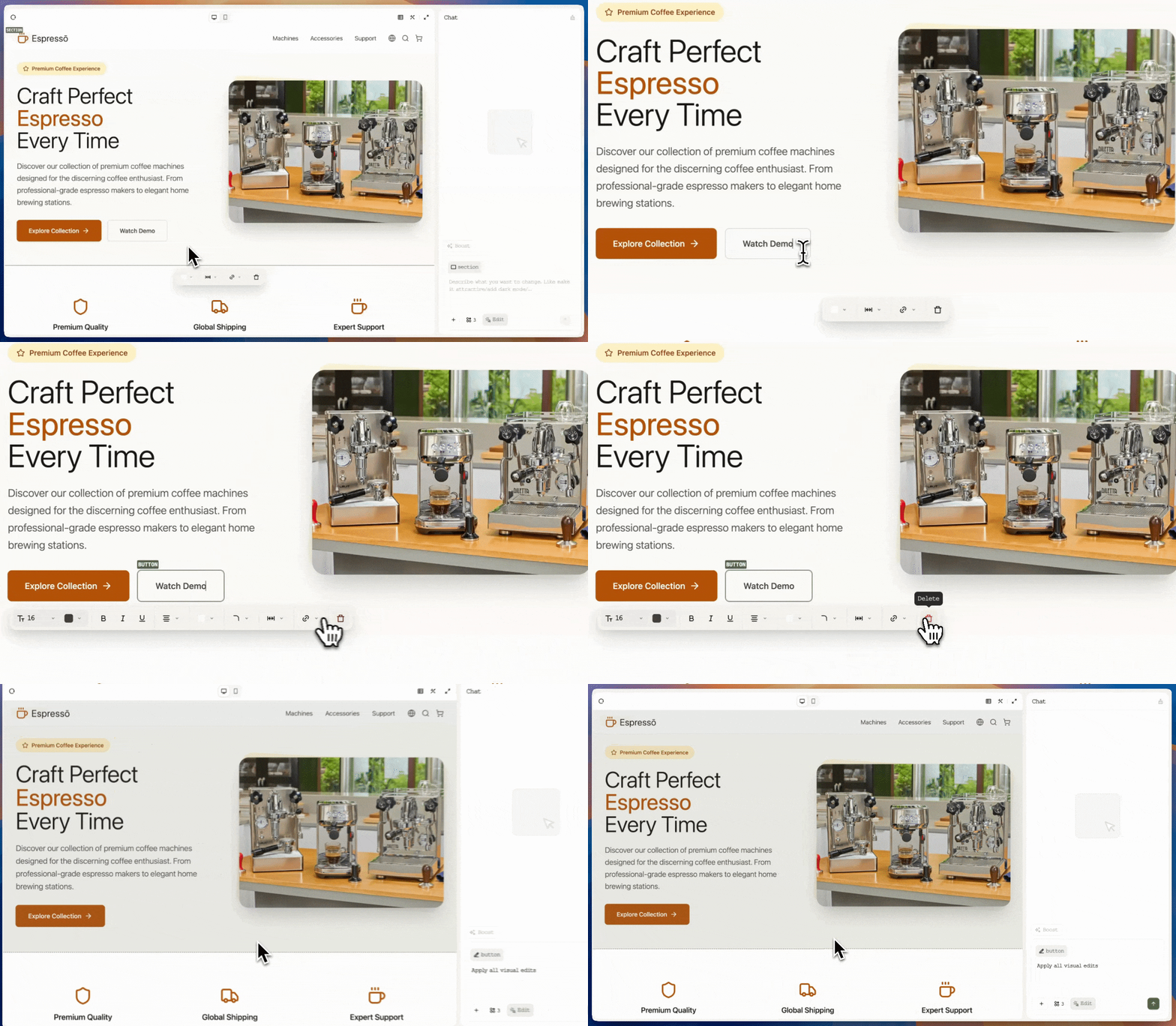
Delete elements you no longer need with a single click. The element is removed from your page immediately.
## Keyboard Shortcuts
Speed up your workflow with these keyboard shortcuts:
* **Cmd+Z** — Undo your last change
* **Shift+Cmd+Z** — Redo your last change
* **Ctrl+Z** — Undo your last change
* **Ctrl+Shift+Z** — Redo your last change
## Applying & Saving Changes
**Important**: Changes are only saved when you apply them. Unsaved modifications will be lost if you exit without applying.
When you're ready to finalize your edits:
Take a moment to review all modifications in the preview
Click the **send arrow** or press **Enter** to apply your edits and exit Visual Editing mode
View the credit cost displayed after each edit (for example: `Credits used: 20`). Depending on change complexity, some edits may consume no credits at all.
## Exiting Visual Editing
You have two options when leaving Visual Editing mode:
Click the **send arrow** or press **Enter** to save your edits and exit Visual Editing mode. Your changes become permanent.
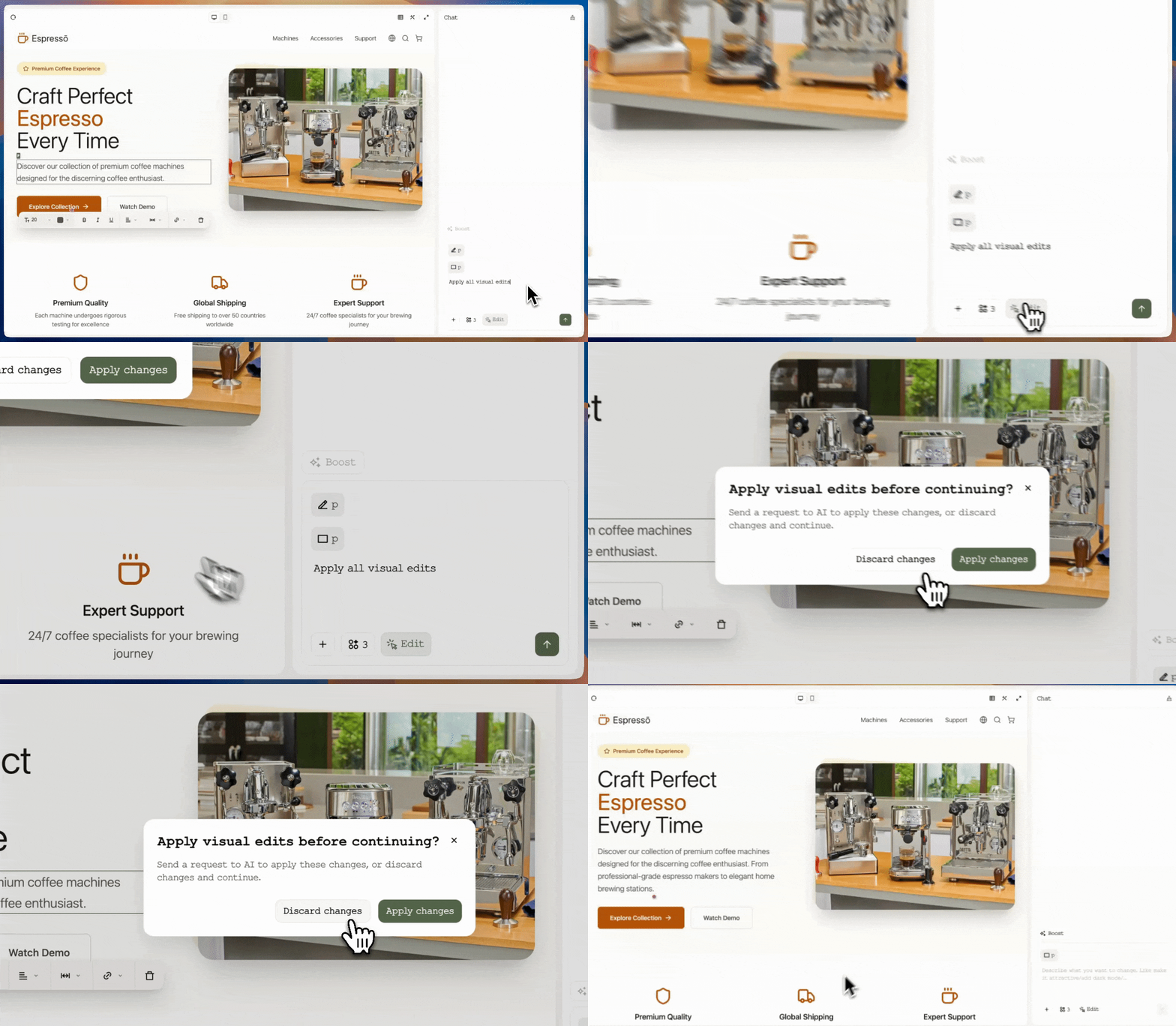
Click the **Edit** button again in the bottom-left corner. In the popup menu, select **Discard changes** to exit without saving any modifications.
## Best Practices
**Pro tip**: Use the undo/redo shortcuts (Cmd+Z / Ctrl+Z) liberally. You can experiment freely and revert any mistakes instantly without affecting your AI credit balance until you apply changes.
Visual Editing works best for targeted, precise modifications rather than complete redesigns.
Make multiple related changes before applying to optimize credit usage.
Always review changes in the preview before applying them to avoid unintended modifications.
Use Visual Editing for refinements and AI chat for structural changes to your website.
## Summary
Visual Editing transforms "slow, credit-heavy back-and-forth" into "**quick, precise, and affordable**" improvements you fully control. By selecting elements directly in the preview, you eliminate misunderstandings, shorten feedback loops, and keep projects moving forward.
Whether you're polishing copy, swapping images, fine-tuning layouts, or adding interactivity, you can iterate in seconds and apply changes confidently—no guesswork, no waste.
 ### Image Elements
Select any image to replace or customize it:
### Image Elements
Select any image to replace or customize it:
 ### Other Elements (Divs, Buttons, Spans, etc.)
Customize styling and interactivity for any page element:
### Other Elements (Divs, Buttons, Spans, etc.)
Customize styling and interactivity for any page element:
 ## Keyboard Shortcuts
Speed up your workflow with these keyboard shortcuts:
## Keyboard Shortcuts
Speed up your workflow with these keyboard shortcuts:
 ## Exiting Visual Editing
You have two options when leaving Visual Editing mode:
## Exiting Visual Editing
You have two options when leaving Visual Editing mode:
 ## Best Practices