> ## Documentation Index
> Fetch the complete documentation index at: https://docs.youware.com/llms.txt
> Use this file to discover all available pages before exploring further.
# Tab Tab Prompt Completion
> Type faster with intelligent autocomplete. Tab Tab predicts your next command and keeps your creative flow uninterrupted.
**Type less. Create more.**
Tab Tab anticipates what you need next. Just press Tab — the suggestion fills in instantly.
## What Is Tab Tab?
Tab Tab is YouWare's intelligent autocomplete for your input field.
It reads your typing. Understands your intent. Suggests what comes next. No pause. No thinking. Just flow.
 ## How It Works
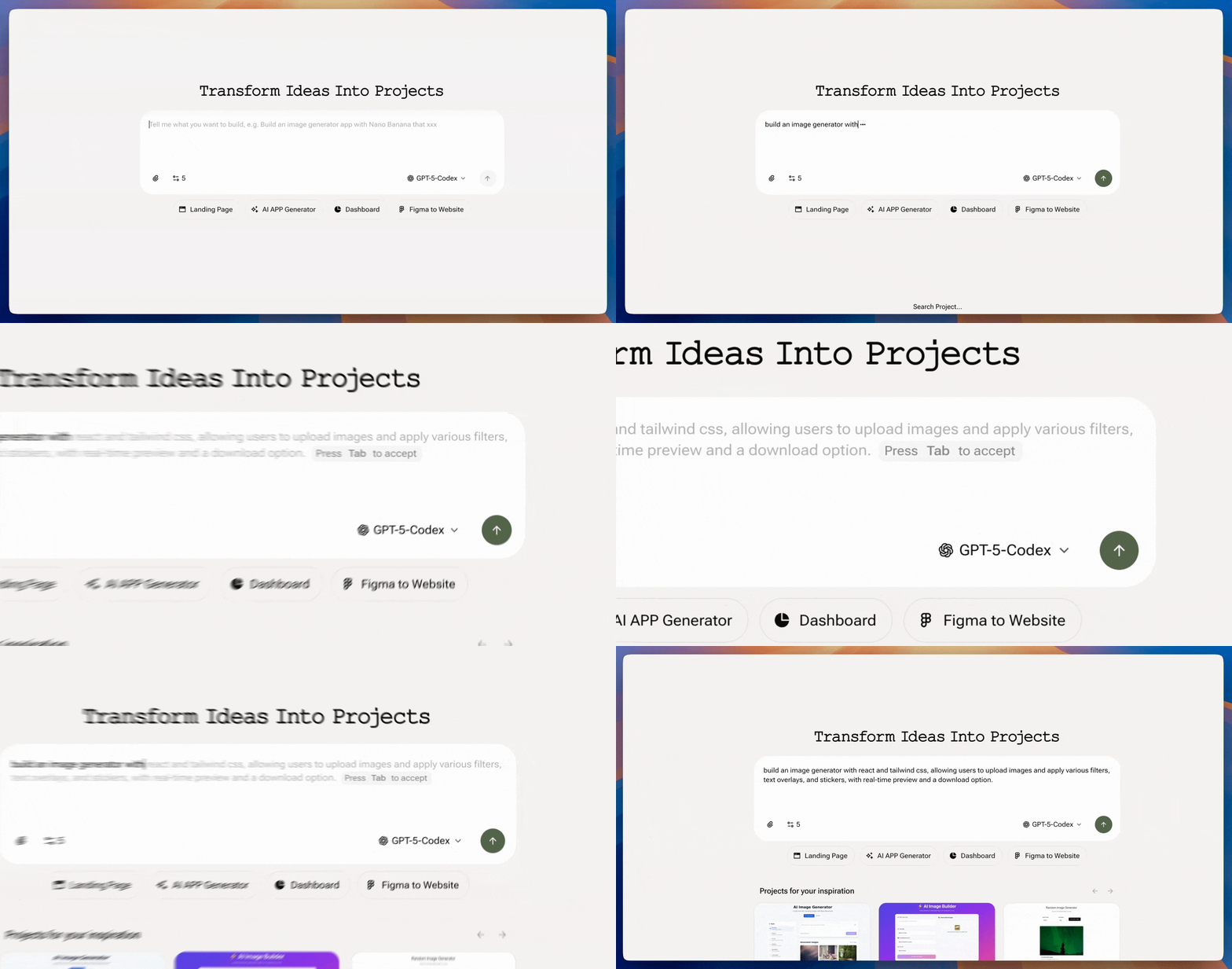
Type in the input field. Tab Tab analyzes your text and project context in real-time.
Smart predictions appear automatically based on what you're building.
Hit **Tab key**. The suggestion fills in instantly.
Don't like it? Keep typing. Tab Tab adjusts immediately with new suggestions.
Tab Tab learns from your project context. The more you build, the smarter the suggestions.
## Why It Helps
Stop thinking about syntax. Let AI complete your thoughts.
No pause. No interruption. Ideas turn into commands instantly.
Suggestions adapt to your project, tech stack, and current task.
Discover new possibilities through AI suggestions you hadn't considered.
## When to Use Tab Tab
**Perfect for:**
* Quick iterations and rapid prototyping
* Complex prompts that need precise descriptions
* Learning new YouWare commands and capabilities
* Maintaining creative momentum during long sessions
**How it adapts:**
* Building a landing page? Tab Tab suggests layout improvements
* Working with animations? It recommends motion libraries
* Adding features? It predicts common next steps
## Best Practices
Tab fills in the suggestion. Review it before hitting Enter. You can always edit before submitting.
If the suggestion isn't quite right, don't stop. Keep typing and Tab Tab will adjust its prediction instantly.
When doing similar edits, Tab Tab remembers patterns. It speeds up repetitive work significantly.
Use Tab Tab with Boost, Visual Editing, or Code Editor. It works everywhere in the editor to keep you moving fast.
***
**Available everywhere**
Tab Tab works on the creation page and in the editor. Start typing anywhere to see suggestions.
## How It Works
Type in the input field. Tab Tab analyzes your text and project context in real-time.
Smart predictions appear automatically based on what you're building.
Hit **Tab key**. The suggestion fills in instantly.
Don't like it? Keep typing. Tab Tab adjusts immediately with new suggestions.
Tab Tab learns from your project context. The more you build, the smarter the suggestions.
## Why It Helps
Stop thinking about syntax. Let AI complete your thoughts.
No pause. No interruption. Ideas turn into commands instantly.
Suggestions adapt to your project, tech stack, and current task.
Discover new possibilities through AI suggestions you hadn't considered.
## When to Use Tab Tab
**Perfect for:**
* Quick iterations and rapid prototyping
* Complex prompts that need precise descriptions
* Learning new YouWare commands and capabilities
* Maintaining creative momentum during long sessions
**How it adapts:**
* Building a landing page? Tab Tab suggests layout improvements
* Working with animations? It recommends motion libraries
* Adding features? It predicts common next steps
## Best Practices
Tab fills in the suggestion. Review it before hitting Enter. You can always edit before submitting.
If the suggestion isn't quite right, don't stop. Keep typing and Tab Tab will adjust its prediction instantly.
When doing similar edits, Tab Tab remembers patterns. It speeds up repetitive work significantly.
Use Tab Tab with Boost, Visual Editing, or Code Editor. It works everywhere in the editor to keep you moving fast.
***
**Available everywhere**
Tab Tab works on the creation page and in the editor. Start typing anywhere to see suggestions.