> ## Documentation Index
> Fetch the complete documentation index at: https://docs.youware.com/llms.txt
> Use this file to discover all available pages before exploring further.
# Multi-Model Switching
> Switch between 5 top AI models (OpenAI, Anthropic, Moonshot, Z.ai) to optimize efficiency and costs for different tasks. Choose the right model for each scenario.
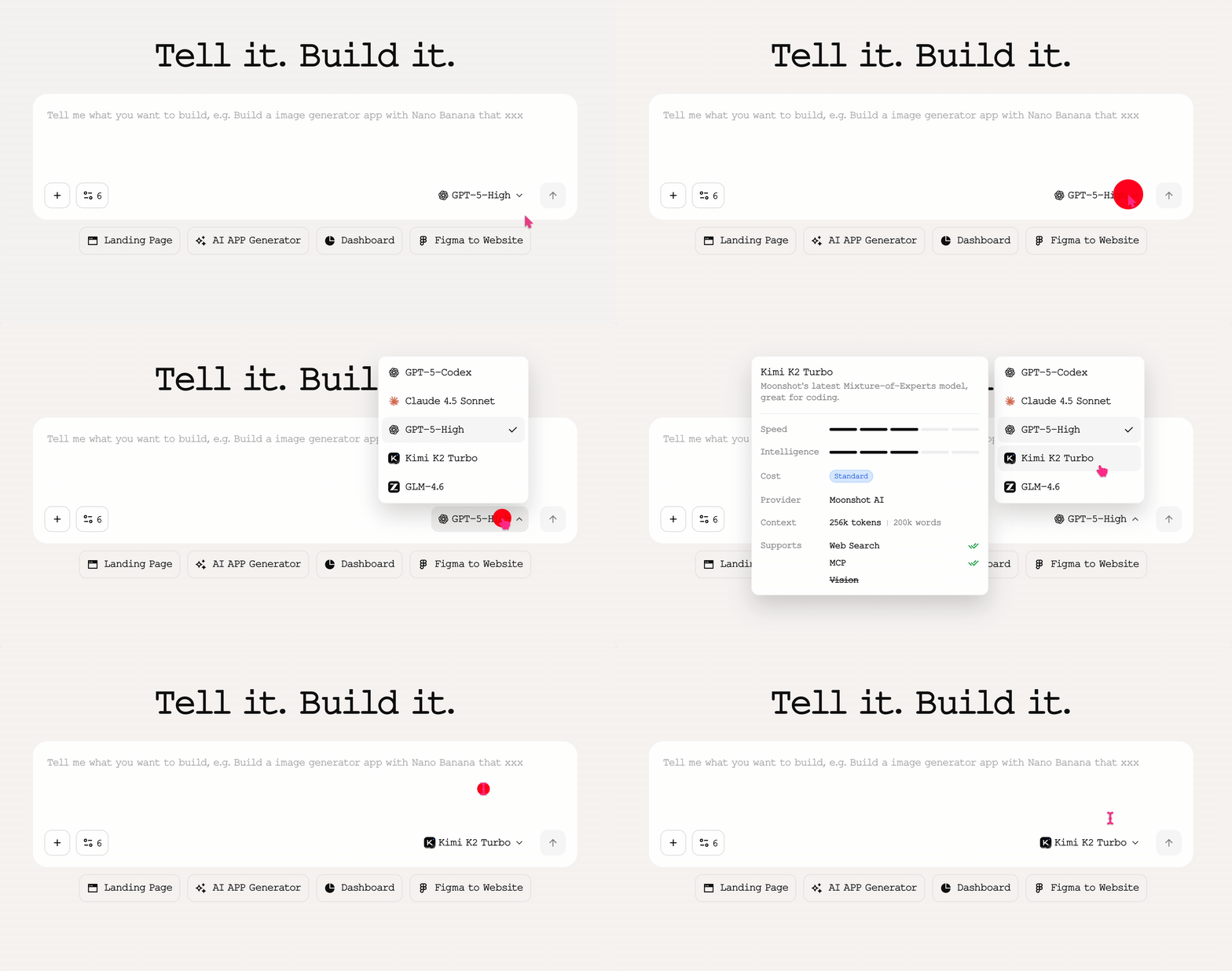 For the same requirement, it takes 20 points with Claude and 5 points with GLM. But Claude can handle complex tasks at once, GLM may need to debug 3 times.
**Model selection directly determines your efficiency and cost.** YouWare now integrates 5 top AI models, from OpenAI and Anthropic to Moonshot and Z.ai - you can switch at any time in the bottom right corner of the input box to match the task to pick the right tool.
## Why Multiple Models Matter
**A single model can't fulfill all scenarios:**
Don't need the most intelligence, but are burning the most expensive points
Require top-level reasoning, and weak models will repeatedly make mistakes
Small context windows truncate key information when processing
When one model's service breaks, all projects are stuck
## Model Matrix Flexibility
Low-cost models for fast iteration
Top models for quality assurance
Large context windows for complete processing
Automatic switching to available models
## How to Switch Models
Click the current model name (default "Claude Sonnet 4.5") in the lower right corner of the input box
Drop-down menu shows all 5 models
Hover to view detailed information card (speed, intelligence, cost, support capability)
Click on the target model and confirm switching on the right
## Model Information Cards
For the same requirement, it takes 20 points with Claude and 5 points with GLM. But Claude can handle complex tasks at once, GLM may need to debug 3 times.
**Model selection directly determines your efficiency and cost.** YouWare now integrates 5 top AI models, from OpenAI and Anthropic to Moonshot and Z.ai - you can switch at any time in the bottom right corner of the input box to match the task to pick the right tool.
## Why Multiple Models Matter
**A single model can't fulfill all scenarios:**
Don't need the most intelligence, but are burning the most expensive points
Require top-level reasoning, and weak models will repeatedly make mistakes
Small context windows truncate key information when processing
When one model's service breaks, all projects are stuck
## Model Matrix Flexibility
Low-cost models for fast iteration
Top models for quality assurance
Large context windows for complete processing
Automatic switching to available models
## How to Switch Models
Click the current model name (default "Claude Sonnet 4.5") in the lower right corner of the input box
Drop-down menu shows all 5 models
Hover to view detailed information card (speed, intelligence, cost, support capability)
Click on the target model and confirm switching on the right
## Model Information Cards
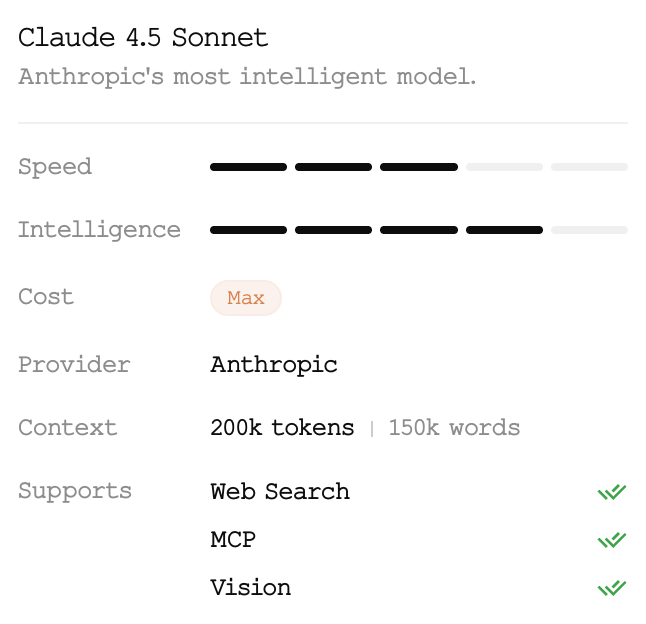 Each model information card provides comprehensive decision-making data:
5-panel progress bar comparison for Speed and Intelligence levels
Clear cost levels: Low, Standard, or Max pricing tiers
Token limits and corresponding word count estimations
Capability tags including Web Search, MCP, and Vision support
Switching between models is instant and takes just 3 seconds to complete. Choose the optimal model based on your specific task requirements and budget constraints.
Each model information card provides comprehensive decision-making data:
5-panel progress bar comparison for Speed and Intelligence levels
Clear cost levels: Low, Standard, or Max pricing tiers
Token limits and corresponding word count estimations
Capability tags including Web Search, MCP, and Vision support
Switching between models is instant and takes just 3 seconds to complete. Choose the optimal model based on your specific task requirements and budget constraints.