> ## Documentation Index
> Fetch the complete documentation index at: https://docs.youware.com/llms.txt
> Use this file to discover all available pages before exploring further.
# CoView
> Use screen recording with voice to communicate UI issues to the AI. Show exactly what you see instead of describing it in text.
## What is CoView?
CoView lets you record your screen and speak to show the AI exactly what you're seeing. Instead of typing descriptions, you point at elements and explain verbally—like sharing your screen with a colleague.
## Quick Start
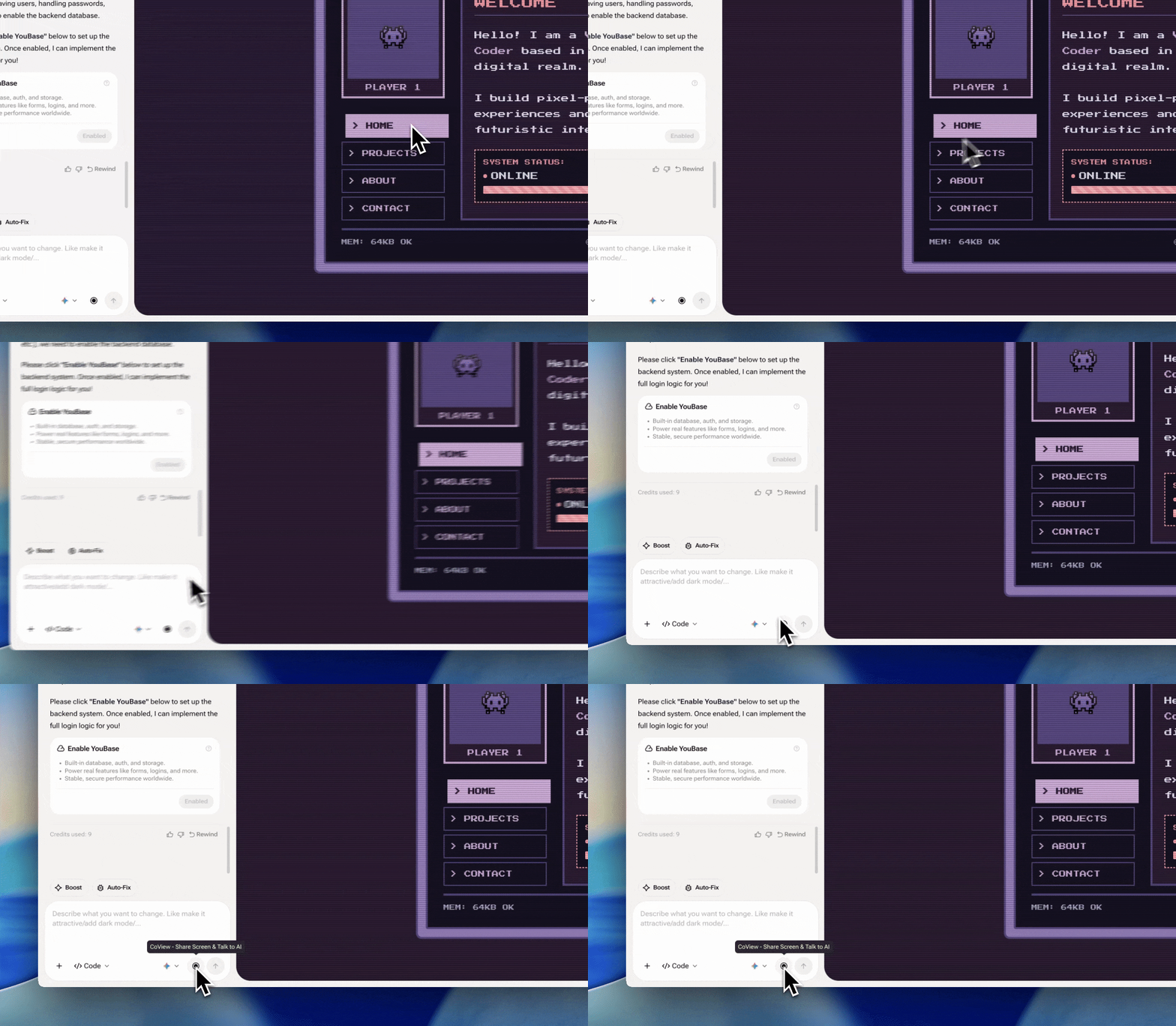
Find and click the **CoView** button in the editor toolbar
Navigate to the issue and hover your mouse over the element
Describe what you want in natural language
Stop recording and send—the AI receives video, audio, and visual context together
Think of it as a video call with your AI assistant. Just show and tell.
## When to Use CoView
CoView shines when **showing is easier than describing**:
| Scenario | Why CoView Helps |
| ---------------- | --------------------------------------------- |
| Animation issues | AI sees the exact timing and behavior |
| Layout problems | Point directly at the spacing or alignment |
| Interactive bugs | Demonstrate the steps that trigger the issue |
| Visual polish | Say "make this pop more" while pointing at it |
### Text vs CoView: A Comparison
**Typing:**
> "The button hover animation has a delay and the color transition isn't smooth. It's the blue button in the hero section."
**CoView:**
Hover over the button and say: "Can you make this smoother?"
→ AI sees exactly which button, the current animation, and what "smooth" means in context.
**Typing:**
> "When I submit the form, there's a flash of content before the spinner shows up."
**CoView:**
Record the form submission and say: "Fix this flash."
→ AI sees the exact sequence and timing of events.
**Typing:**
> "The cards have inconsistent spacing, I think the third one has more margin."
**CoView:**
Point at the gaps while saying: "These gaps are inconsistent."
→ No ambiguity about which cards or which gaps.
## Best Practices
Keep recordings focused on a single problem for clearer communication and faster processing.
Move your cursor to the exact element as you describe it—this gives the AI spatial context.
If it's a bug, demonstrate the exact steps that cause it rather than just describing the end state.
Speak naturally. "This feels clunky" works better than technical jargon.
### Combining with Other Features
CoView works well with other YouWare features:
| Combine With | Use Case |
| ------------------ | ------------------------------------------------------------------------- |
| **Visual Editing** | Use CoView to explain complex changes, then fine-tune with Visual Editing |
| **Code Editor** | Record a bug demo, then review the AI's code fix in Code Editor |
| **Boost** | Use CoView for the initial request, Boost for quick iterations |
### Optimizing for Efficiency
CoView is optimized for accuracy, not speed. For simple, clear-cut changes, typing may be faster.
**When to type instead:**
* Simple text changes ("Change the button text to 'Submit'")
* Clear CSS values ("Make the header 64px tall")
* Code-only changes with no visual component
**When CoView saves time:**
* Anything that requires pointing ("this button", "that gap")
* Temporal issues (animations, loading states, transitions)
* Subjective feedback ("feels slow", "looks cramped")
## How CoView Works
CoView captures three layers of context and sends them to the AI together:
```
┌─────────────────────────────────────────────┐
│ CoView Input │
├─────────────────────────────────────────────┤
│ 🎥 Visual │ Screen recording frames │
│ 🖱️ Spatial │ Mouse position & movements │
│ 🎤 Voice │ Transcribed audio + tone │
└─────────────────────────────────────────────┘
↓
┌─────────────────────────────────────────────┐
│ AI Processing │
├─────────────────────────────────────────────┤
│ 1. Map voice to visual regions │
│ 2. Identify referenced elements │
│ 3. Understand temporal sequences │
│ 4. Generate targeted code changes │
└─────────────────────────────────────────────┘
```
### Why This Matters
Traditional text prompts lose context:
* **Ambiguity**: "The button" could be any button
* **Temporal blindness**: AI can't see animation timing from text
* **Spatial guessing**: "Top right" is relative and imprecise
CoView eliminates these issues by giving the AI the same visual context you have.
### Save Credits with Better Communication
Because CoView reduces miscommunication, you often get the right result on the first try:
| Approach | Typical Iterations | Credits Used |
| ---------------------------- | ---------------------------------------------- | ------------ |
| Text description (ambiguous) | 3-5 rounds of "not that button, the other one" | Higher |
| CoView (precise) | 1-2 targeted fixes | Lower |
Clear communication = fewer iterations = less credit consumption. CoView helps you get "What You See Is What You Get" fixes without burning through your quota on trial-and-error.
### Technical Notes
* **Permissions**: CoView requires browser permissions for screen recording and microphone access
* **Processing**: Longer recordings take more time to analyze—keep clips under 30 seconds when possible
* **Privacy**: Recordings are processed for the current request only and are not stored
## Good to Know
* Grant microphone and screen recording permissions when prompted
* Keep recordings focused—shorter clips process faster
* For code-only changes without visual context, typing is often more efficient