> ## Documentation Index
> Fetch the complete documentation index at: https://docs.youware.com/llms.txt
> Use this file to discover all available pages before exploring further.
# Code Editor
> Browse and edit your project's code directly in the workspace. View code instantly, edit as a subscriber, and save in real-time.
View your project's source code directly in the editor. No external tools needed. Subscribers can also edit and save changes instantly.
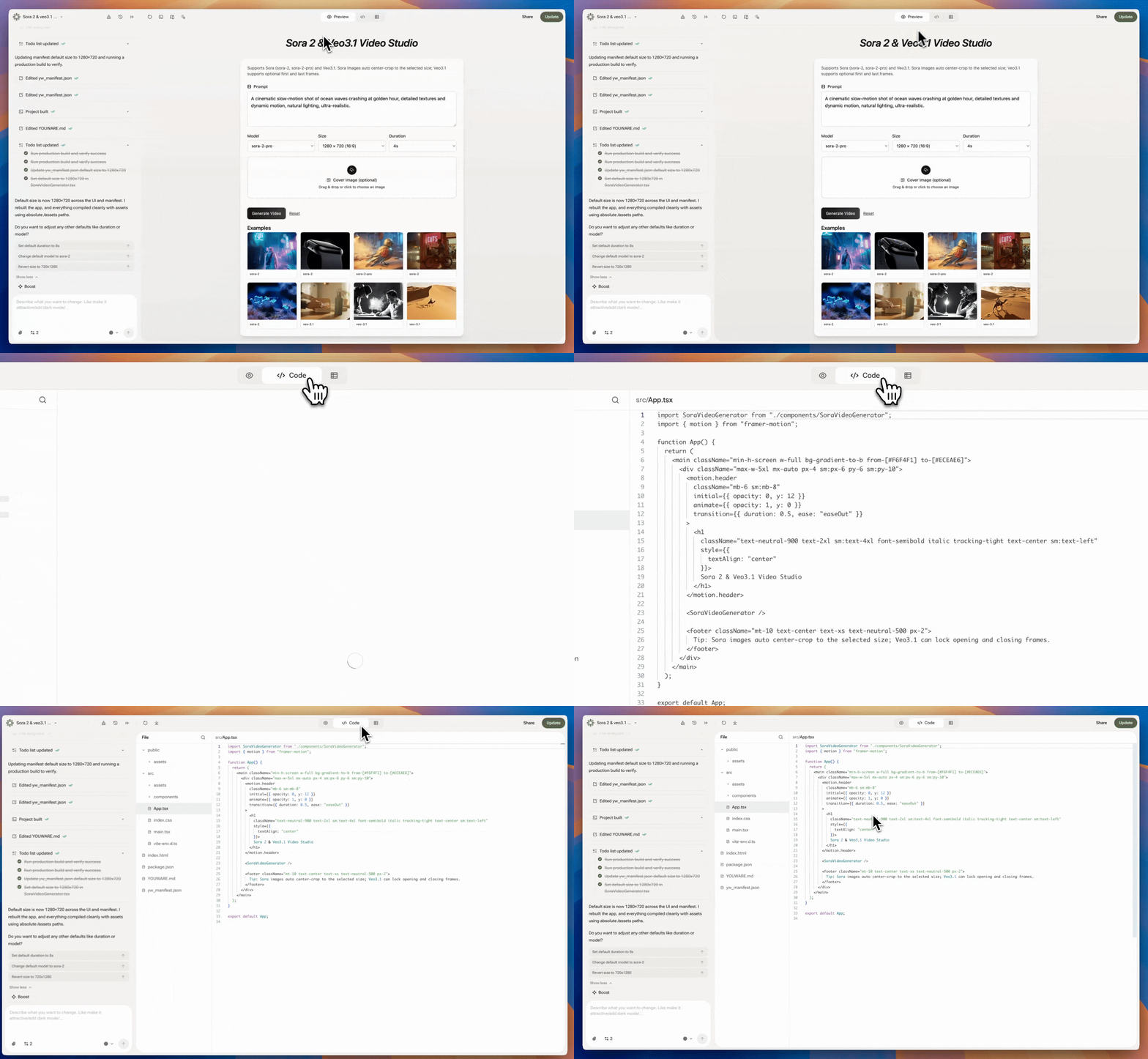 ## Access Your Code
Click **Code Editor** to browse your complete project structure and files. You can see:
* HTML, CSS, JavaScript files
* Project file organization
* All source code
## Edit Your Code
Edit files directly and save instantly. Updates appear in your preview in real-time.
View and browse your project code. Upgrade to edit.
## What You Can Do
Browse file structure and read source code (all users)
Edit and save changes instantly (subscribers only)
Make all changes directly in YouWare
Changes apply instantly to your project preview
**Pro tip:** Mix manual code edits with AI changes. Your manual edits are saved as part of your project, and the AI will consider them when making future changes.
## Frequently Asked Questions
Yes. All users can browse and view their project code in Code Editor. Only [subscribers](https://www.youware.com/subscription?location=docs) can edit and save changes.
Yes. When you edit code as a subscriber, changes save instantly. You'll see updates in the preview immediately.
No. Code Editor lets you view and edit in the workspace. To download your complete project code, use the download feature in your project settings (requires subscription).
You can view and edit any file in your project: HTML, CSS, JavaScript, JSON, and other text-based formats.
Yes. Your manual code edits are part of your project. If you ask the AI to make changes afterward, it takes your edits into account. You can mix manual and AI editing freely.
You can use browser undo (Ctrl+Z or Cmd+Z) while editing. For larger undos, you may need to use your version control if connected to GitHub.
Yes. Code Editor includes syntax highlighting for all common web languages to make code easier to read.
Yes. Use your browser's find function (Ctrl+F or Cmd+F) to search within the Code Editor.
## Access Your Code
Click **Code Editor** to browse your complete project structure and files. You can see:
* HTML, CSS, JavaScript files
* Project file organization
* All source code
## Edit Your Code
Edit files directly and save instantly. Updates appear in your preview in real-time.
View and browse your project code. Upgrade to edit.
## What You Can Do
Browse file structure and read source code (all users)
Edit and save changes instantly (subscribers only)
Make all changes directly in YouWare
Changes apply instantly to your project preview
**Pro tip:** Mix manual code edits with AI changes. Your manual edits are saved as part of your project, and the AI will consider them when making future changes.
## Frequently Asked Questions
Yes. All users can browse and view their project code in Code Editor. Only [subscribers](https://www.youware.com/subscription?location=docs) can edit and save changes.
Yes. When you edit code as a subscriber, changes save instantly. You'll see updates in the preview immediately.
No. Code Editor lets you view and edit in the workspace. To download your complete project code, use the download feature in your project settings (requires subscription).
You can view and edit any file in your project: HTML, CSS, JavaScript, JSON, and other text-based formats.
Yes. Your manual code edits are part of your project. If you ask the AI to make changes afterward, it takes your edits into account. You can mix manual and AI editing freely.
You can use browser undo (Ctrl+Z or Cmd+Z) while editing. For larger undos, you may need to use your version control if connected to GitHub.
Yes. Code Editor includes syntax highlighting for all common web languages to make code easier to read.
Yes. Use your browser's find function (Ctrl+F or Cmd+F) to search within the Code Editor.