> ## Documentation Index
> Fetch the complete documentation index at: https://docs.youware.com/llms.txt
> Use this file to discover all available pages before exploring further.
# YouWare MCP Tools Introduction
> Learn how to integrate external services like Figma, Notion, and more into your YouWare project with MCP Tools. Simple setup, powerful connections.
# Connect Your Project to Any Service
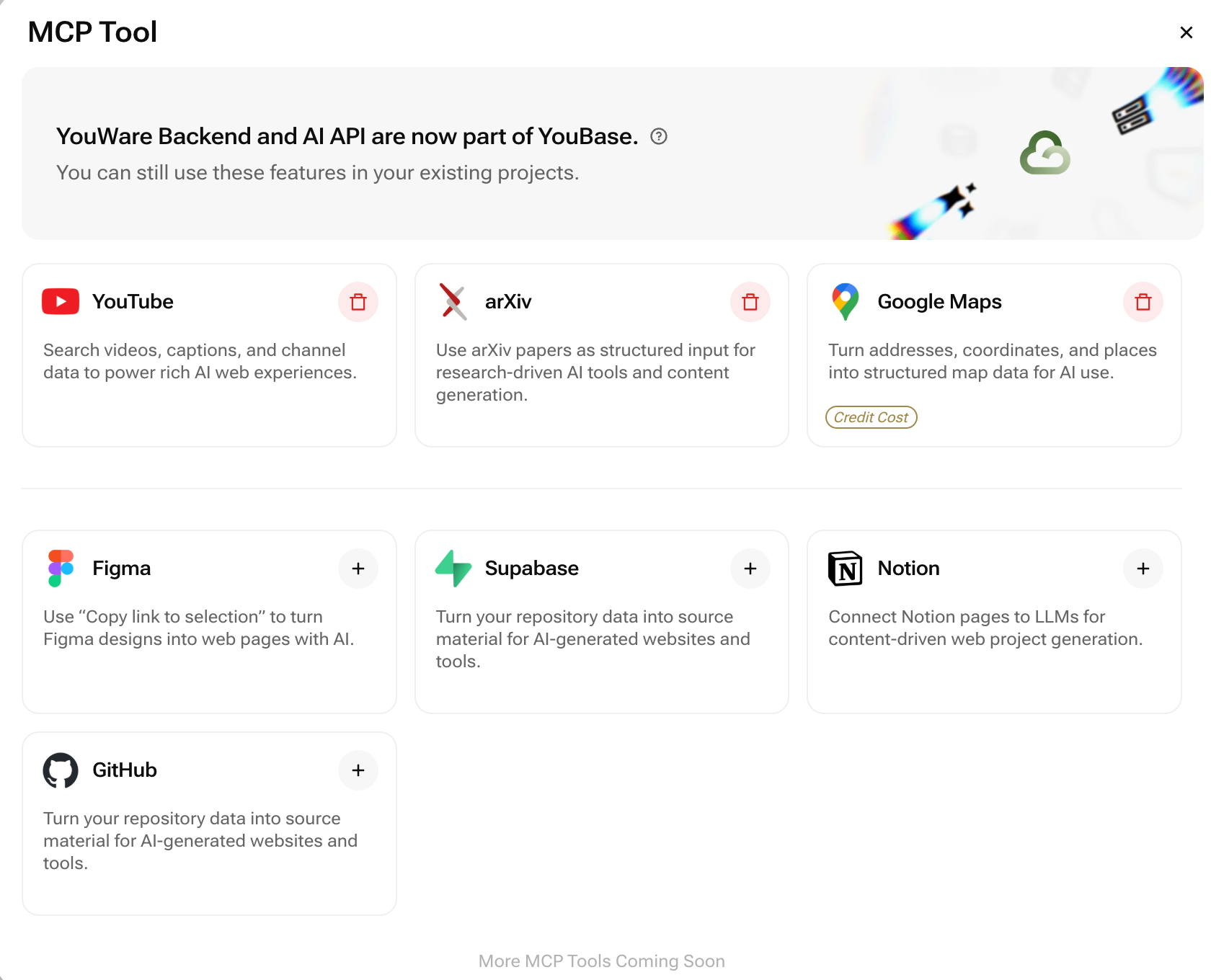
Connect your project to the services you love - Figma, Notion, and dozens more.
 ## Why Connections Matter
Remember when smartphones were just for calls? Then apps came along and changed everything. **That's exactly what MCP Tools do for your YouWare project.**
MCP Tools are like apps for your website. Install one, and suddenly your project can connect with the services you already love—Figma, Notion, and dozens more. Think of them as smart adapters that help your site plug into the tools you rely on every day, so everything works together instead of living in separate silos.
### What becomes possible?
If you've ever wished your YouWare project could:
**Pull in your latest Notion pages** automatically
**Switch between multiple AI models** to find the perfect fit
**Turn your Figma designs into live pages** in seconds
**Display real-time game leaderboards** without breaking a sweat
...then you're in the right place. YouWare MCP Tools make all of this possible with just a few clicks.
## How do I add a connection to my project?
## Why Connections Matter
Remember when smartphones were just for calls? Then apps came along and changed everything. **That's exactly what MCP Tools do for your YouWare project.**
MCP Tools are like apps for your website. Install one, and suddenly your project can connect with the services you already love—Figma, Notion, and dozens more. Think of them as smart adapters that help your site plug into the tools you rely on every day, so everything works together instead of living in separate silos.
### What becomes possible?
If you've ever wished your YouWare project could:
**Pull in your latest Notion pages** automatically
**Switch between multiple AI models** to find the perfect fit
**Turn your Figma designs into live pages** in seconds
**Display real-time game leaderboards** without breaking a sweat
...then you're in the right place. YouWare MCP Tools make all of this possible with just a few clicks.
## How do I add a connection to my project?
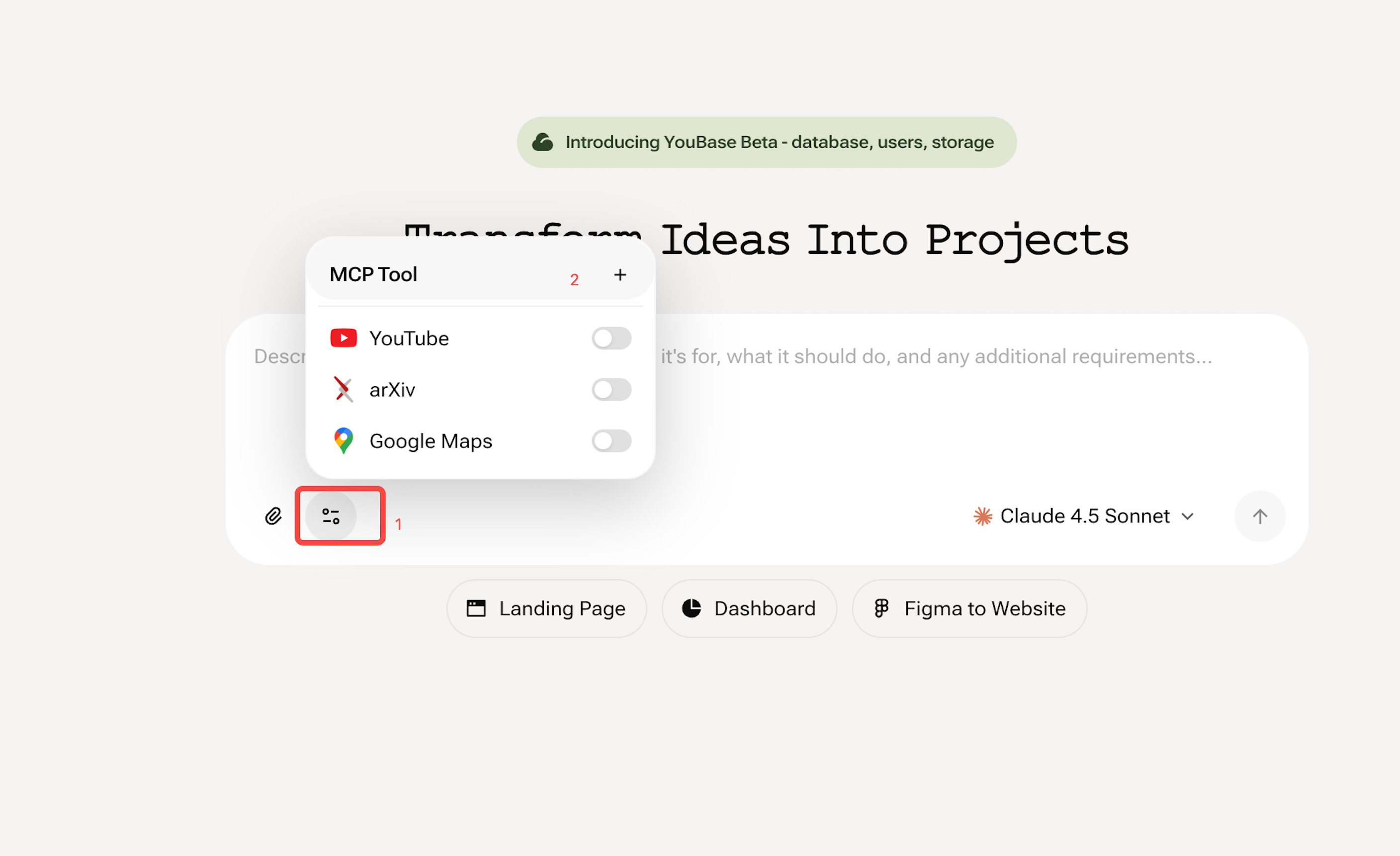
 ### Step 1: Access the MCP Tool Panel
The **MCP Tool** entry point is located at the **bottom left** of the input box on the page creation screen. Click it to expand the list of available tools and connections for your current project.
### Step 2: Add Your Connection
You can add connections by **combining natural language prompts with MCP Tool actions**:
**Describe your needs** in the chat input using natural language
**Select the corresponding tool** from the MCP Tool panel
**Examples:**
```text Example 1 theme={null}
Prompt: "Add a backend voting system with a leaderboard"
Action: Click to enable the YouBase tool in the MCP Tool panel
```
```text Example 2 theme={null}
Prompt: "Connect to my Figma design and convert it to code"
Action: Click to enable the Figma tool in the MCP Tool panel
```
### Step 3: Authorize & Configure (if needed)
Some tools (such as **Figma** and **database-related tools**) require authorization and linking. Don't worry—these tools come with:
* Step-by-step configuration instructions
* Built-in examples
* Simple guidance to get you started quickly
### Step 4: Generate Your Project
Press **Enter** and wait for YouWare to create your project with the integrated tools ready to use.
**Performance Tip:** The more MCP Tools you enable, the slower your project generation will be. Each tool adds processing time as the AI needs to coordinate multiple services. For optimal performance, only enable the tools you actually need for your project. You can always add more tools later!
***
## Finding Your Perfect Tool
**Not sure where to start?** Here's a quick guide to help you find the right tool for your needs:
**Built-in Tools**: Animation Library, Icon Library, Image Generator, and Unsplash are now automatically available in every project—no setup needed! Just describe what you want and the AI will use them automatically.
**Turn designs into code** → Use Figma
**Collect & manage data** → Check out YouBase or Supabase
**Display dynamic content** → Connect Notion, GitHub, or YouTube
**Embed interactive maps** → Go with Google Maps
**Access research papers** → Integrate arXiv
**Welcome to the YouWare Way** - Where your ideas become reality faster than you thought possible.
***
## Frequently Asked Questions
MCP Tools (Model Context Protocol Tools) are pre-built connections that extend your YouWare project's capabilities. They work like plugins or apps, allowing your website to connect with external services like AI models, databases, design tools, and content platforms—all without writing complex code.
Not at all! That's the beauty of YouWare connections. Simply select the tool you need, describe what you want in plain English, and YouWare handles all the technical implementation. Whether you're connecting AI image generation or your Notion workspace, it's all done through our intuitive interface.
Absolutely! In fact, we encourage it. You can combine multiple MCP Tools to create powerful, feature-rich applications. For example, you might use Figma to import your design, AI API to generate content, Supabase to manage your database, and Unsplash for images—all in the same project.
**Keep in mind:** The more tools you enable, the longer it takes to generate your project. Each additional tool requires more processing as the AI coordinates between services. For best performance, start with essential tools and add more as needed.
**YouWare Backend** is our built-in data management solution—perfect for simple data storage and retrieval with zero configuration. **Supabase** is a more robust, full-featured database platform ideal for complex applications that need advanced querying, real-time updates, or authentication features. Choose based on your project's complexity.
Yes. YouWare uses enterprise-grade encryption to protect all credentials and data. When using [YouBase](/youbase/introduction), your API keys can be stored in the **Secrets** module—a dedicated secure vault that ensures:
* **Server-side only access**: Secrets are never exposed to frontend code or sent to users' browsers
* **Enterprise-grade encryption**: All credentials are encrypted at rest and in transit
* **Hidden after creation**: Secret values are never displayed after you save them
* **Full control**: You can edit, rotate, or delete your secrets anytime
We follow industry best practices for data privacy and security. Your sensitive credentials stay on the server, accessible only through backend Functions—never visible to end users.
Of course! You can add or remove connections anytime without affecting your project's core functionality. If you remove a connection, any features that depend on it will stop working, but your other features remain intact. You can always re-add it later if needed.
We're constantly adding new MCP Tools based on user feedback. If you need a specific connection, let us know through our feedback form or community forum. In the meantime, you can often use the **Web Scraper** or **API connection** tools to connect with custom services.
### Step 1: Access the MCP Tool Panel
The **MCP Tool** entry point is located at the **bottom left** of the input box on the page creation screen. Click it to expand the list of available tools and connections for your current project.
### Step 2: Add Your Connection
You can add connections by **combining natural language prompts with MCP Tool actions**:
**Describe your needs** in the chat input using natural language
**Select the corresponding tool** from the MCP Tool panel
**Examples:**
```text Example 1 theme={null}
Prompt: "Add a backend voting system with a leaderboard"
Action: Click to enable the YouBase tool in the MCP Tool panel
```
```text Example 2 theme={null}
Prompt: "Connect to my Figma design and convert it to code"
Action: Click to enable the Figma tool in the MCP Tool panel
```
### Step 3: Authorize & Configure (if needed)
Some tools (such as **Figma** and **database-related tools**) require authorization and linking. Don't worry—these tools come with:
* Step-by-step configuration instructions
* Built-in examples
* Simple guidance to get you started quickly
### Step 4: Generate Your Project
Press **Enter** and wait for YouWare to create your project with the integrated tools ready to use.
**Performance Tip:** The more MCP Tools you enable, the slower your project generation will be. Each tool adds processing time as the AI needs to coordinate multiple services. For optimal performance, only enable the tools you actually need for your project. You can always add more tools later!
***
## Finding Your Perfect Tool
**Not sure where to start?** Here's a quick guide to help you find the right tool for your needs:
**Built-in Tools**: Animation Library, Icon Library, Image Generator, and Unsplash are now automatically available in every project—no setup needed! Just describe what you want and the AI will use them automatically.
**Turn designs into code** → Use Figma
**Collect & manage data** → Check out YouBase or Supabase
**Display dynamic content** → Connect Notion, GitHub, or YouTube
**Embed interactive maps** → Go with Google Maps
**Access research papers** → Integrate arXiv
**Welcome to the YouWare Way** - Where your ideas become reality faster than you thought possible.
***
## Frequently Asked Questions
MCP Tools (Model Context Protocol Tools) are pre-built connections that extend your YouWare project's capabilities. They work like plugins or apps, allowing your website to connect with external services like AI models, databases, design tools, and content platforms—all without writing complex code.
Not at all! That's the beauty of YouWare connections. Simply select the tool you need, describe what you want in plain English, and YouWare handles all the technical implementation. Whether you're connecting AI image generation or your Notion workspace, it's all done through our intuitive interface.
Absolutely! In fact, we encourage it. You can combine multiple MCP Tools to create powerful, feature-rich applications. For example, you might use Figma to import your design, AI API to generate content, Supabase to manage your database, and Unsplash for images—all in the same project.
**Keep in mind:** The more tools you enable, the longer it takes to generate your project. Each additional tool requires more processing as the AI coordinates between services. For best performance, start with essential tools and add more as needed.
**YouWare Backend** is our built-in data management solution—perfect for simple data storage and retrieval with zero configuration. **Supabase** is a more robust, full-featured database platform ideal for complex applications that need advanced querying, real-time updates, or authentication features. Choose based on your project's complexity.
Yes. YouWare uses enterprise-grade encryption to protect all credentials and data. When using [YouBase](/youbase/introduction), your API keys can be stored in the **Secrets** module—a dedicated secure vault that ensures:
* **Server-side only access**: Secrets are never exposed to frontend code or sent to users' browsers
* **Enterprise-grade encryption**: All credentials are encrypted at rest and in transit
* **Hidden after creation**: Secret values are never displayed after you save them
* **Full control**: You can edit, rotate, or delete your secrets anytime
We follow industry best practices for data privacy and security. Your sensitive credentials stay on the server, accessible only through backend Functions—never visible to end users.
Of course! You can add or remove connections anytime without affecting your project's core functionality. If you remove a connection, any features that depend on it will stop working, but your other features remain intact. You can always re-add it later if needed.
We're constantly adding new MCP Tools based on user feedback. If you need a specific connection, let us know through our feedback form or community forum. In the meantime, you can often use the **Web Scraper** or **API connection** tools to connect with custom services.